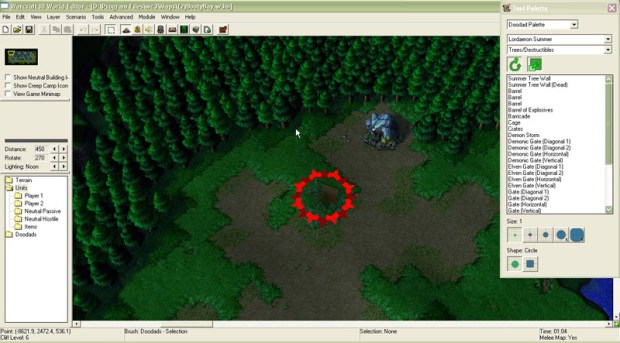
A sample training article for using the World Editor application from the PC game Warcraft III.
There haven’t been any updates—or even any official news—about Warcraft III since Blizzard released Warcraft III: Reforged back in 2020. After mixed reviews from critics and an overwhelmingly negative reception from players, Blizzard cut off all development of the game after only a few halfhearted patches and articles. However, as seen by recent projects like InsaneMonster’s Warcraft III Re-Reforged and LoreCraft’s Warcraft: Chronicles of the Second War, the game’s built-in World Editor application is a powerful tool that can make content that goes above and beyond anything Blizzard promised. This article will focus specifically on the vast utility of the Object Editor, where you can make whatever unit, ability, or item you want for your custom map.

Units
The most basic use of the Object Editor is to modify or create new units and buildings. The regular units will have their names in black, and modified ones will have purple names. Clicking on a unit will show a long list of values that you can change. For basic maps, you may only want to make a few uniquely named units or a spellcaster who has different abilities, but you can also change everything from a unit’s size and color to its combat statistics, sound set, resource cost, and speed.
Below are the categories the values fall under and how changing a value in a category can affect a unit or building:
- Abilities. A unit’s abilities, whether passive, active, autocast, or hidden. Hero units have their own set of Hero Abilities that are learned from leveling up. Creating a unique ability set is a common way to set apart RPG maps from regular melee ones.
- Art. Purely aesthetic elements of a model: the speed that a unit’s model plays its animations, button positions for training and buildings, tinting color, interface icon, and the scale of the model and its shadow.
- Combat. Everything related to a unit’s statistics in a map, including its aggro range, attacks, attack range, projectile settings, armor, defense type, and the sounds their attacks and armor make.
- Editor. A few values that mostly just make the unit easier to manage in the World Editor; for example, which tileset menu you might find a unit in.
- Movement. A unit’s speed and movement type, determining what types of terrain a unit can move across. If a unit’s movement type is “fly” or “hover,” you can also designate how high above the ground the unit is floating.
- Pathing. Mostly just for managing buildings, with specific pathing maps and requirements for where it can be built. For units, you can determine how much space a unit takes up, regardless of how big it appears.
- Sound. Sound effects for the unit’s movement (such as galloping sounds for a mounted unit), construction sounds for buildings, and the full voice set for units.
- Stats. A variety of statistics that determine the unit’s cost, hit points and mana, classification and race, stock for hired mercenaries, and attributes for hero units.
- Techtree. A unit’s relationship to the structure of its team. This includes what buildings or units it can build or train, requirements for it to be trainable or buildable, and whether it has mercenaries or items to sell.
- Text. The unit’s name that’s visible in game, editor names to make it easier and more distinguishable in the editor, proper names of hero units, and informational tooltips. There’s also a value to set a hotkey for training the unit. Make sure the hotkey is different from that of other units or buildings created from the same source.
Going through every value is beyond the scope of this article, but I recommend looking at the existing units in the game and their relationship with each other, and tinkering around with individual values that you might be curious about.
Items
Heroes in the game can manipulate items, and this menu allows you to modify existing items or create new ones for your campaigns.
- Abilities. The primary function of the item and how it affects a hero who is holding or using it. Make sure to take into account everything about the ability you assign to an item, including whether the ability costs mana.
- Art. The item’s button position when it is purchased in a shop, its icon, and its model. The icon is generally the most important aspect of an item, but powerups that will be consumed on use (and therefore not be seen in a hero’s inventory) may require a distinct model to be chosen.
- Combat. For items, this only refers to Armor Type, which is the metallic or wooden sound that an item will make when a unit attacks it. It has no mechanical effect on the item.
- Stats. The item’s cost, power level (as far as computer players are concerned), and stock options for shops that offer the item for sale. This is also where you can determine (alongside its Abilities value) whether the item is a powerup and is automatically used when picked up, an item that grants passive benefits, or an item you click on to cast an active ability with.
- Techtree. Requirements for the item to be available for purchase, such as the higher-powered artifacts in player-owned shops that unlock when your main central building is upgraded.
- Text. The item’s name, the hotkey used to buy it, and the tooltip that explains to the player what the item does. The Description value is similar to a tooltip, but often more brief, since it is seen on the item’s selection screen while it’s on the ground instead of in a shop or an inventory.
Items can be a great way to give new powers and add variety to the hero units in your custom maps. Later, we’ll discuss abilities and how item and unit abilities differ.
Destructibles and Doodads
“Doodads” is a term Blizzard has used since StarCraft (1998) to describe pieces of scenery and set dressing places on maps. This includes fountains, signposts, rocks, archways, torches, flames, and anything else you might use to make your map feel like an interesting world worth exploring. “Destructibles” are doodads that can be destroyed, which includes trees and destructible gates, as well as containers like crates, barrels, and cages.
- Art. What the doodad looks like, including its size, color, shadow, models, and model variations. Since some destructibles can be selected in-game to see how many hit points they have (similar to a unit), things like Selection Size are options unique to their list of values.
- Combat. The sound destructibles make as you attempt to destroy them (Armor Type), as well as the destructible’s classification for the purposes of targeting them with an ability.
- Editor. Some options for making a doodad have random variations when placing them in the editor, which tileset the doodad is unique to, and where the doodad can be placed. Unlike units, whose scale value is fixed, doodads can have a minimum and maximum scale to add more variety to a group of them on the map.
- Pathing. Similar to buildings, these values primarily determine how much space (if any) a doodad takes up to block the construction of buildings and movement of units.
- Sound. An option for a doodad to have a looping sound whenever it’s on the screen, such as the crackling of a brazier’s flames. There’s also a setting for the sound a destructible makes when it is destroyed.
- Stats. The hit points of a destructible. There are also some fields for repairing a damaged or demolished destructible, which is a somewhat underused but functional option in the game.
- Text. The doodad’s name, as well as a suffix for setting it apart from similar doodads in the editor (for example, an archway set to a specific rotation).
Most maps work fine without making custom doodads, since there are a lot in the game to choose from already; but the power and usability of the World Editor extends to doodads and destructibles if that’s what your campaign needs.
Abilities
Orcs and humans hacking each other apart is all good and fun, but the real interesting interactions in Warcraft III are between units using abilities. These abilities include auras that affect nearby other units, passive abilities that affect combat stats and attacks, abilities that can be turned on and off, “autocast” abilities, and active-use spells that can fire immediately or require a target unit or area. Abilities are much more unique in their code than units or items, too, so in order to have the correct values displayed, new custom abilities must be based on an existing ability that has a similar effect.
- Art. Obviously includes the special effect that appears on the caster or the target when the ability is active; however, it also contains values that determine the animation the ability’s caster plays when the spell is cast, the ability’s icon and its position on a unit’s selection menu, and the speed of projectile spells. Abilities can even be customized to be shown on specific “attachment points” of a unit’s body by providing the values origin, head, chest, arm, leg, or weapon.
- Data. The main mechanical aspects of the ability’s effects, the values of which vary widely from ability to ability. This can include anything from damage dealt, the increase or decrease of a unit’s statistics, the specific unit a spell summons, or even how many slots a transport can carry. Many existing abilities in the game have interesting unused data values, which hint at “cutting room floor” aspects that still function when modified. Hero abilities have different Data, Stats, and Text for each of their levels.
- Sound. The sound that plays when the spell is activated or that loops while the caster is channeling the ability. Sometimes this is instead determined by an effect (see Buffs/Effects below).
- Stats. Settings for whether the ability is a Hero Ability (and therefore whether it has hero-specific stats like levels), a unit ability, or an Item Ability; as well as other factors such as the ability’s mana cost, casting range, and what targets it can affect.
- Techtree. Any prerequisites the ability might need before being castable, such as upgrades that need to be researched.
- Text. The ability’s name, its hotkey, and the tooltips both for casting it and learning it (in the case of heroes)
The Ability Editor is by far the most powerful tab of the Object Editor, but because of its complexity, it can cause bugs or even crashes if you aren’t careful with the values.
Buffs/Effects
Out of all the tabs in the Object Editor, this one is the least important to master. “Buffs” are basically labels that display what ability a unit is currently being affected by. They have little effect on the mechanics of gameplay, but they do indicate to players whether an ability is affecting a unit or if a unit is inside an aura. In a typical custom campaign or scenario, you’ll likely just change buffs to match the name and aesthetic of any custom abilities you tie them to. “Effects” are mostly used to create looping sound effects for abilities.
- Art. A set of values to ensure a buff is visible. The icon will be visible as a tiny version in a unit’s selection screen, and a special effect like a floating skull or a glow can be attached to different parts of a unit to indicate it’s being affected by a buff.
- Sound. The sound that occurs whenever an ability fires, as well as the ambient sound that loops for its duration.
- Stats. A value for whether the object is an effect or a buff, as well as which race it is classified under in the editor.
- Text. The name of the buff and the tooltip that will appear along with its icon on an affected unit.
Make sure that the buffs and effects you do create are properly attached to the ability they’re based on.
Upgrades
This last menu allows you to create and modify the technologies and upgrades that a faction has access to. These are most often modified in modified melee maps where a technology tree is an effective aspect of the scenario’s strategy; however, creative users may find ways to use triggers to research upgrades in the background to change units in an RPG or other type of map.
- Art. The upgrade’s icon and button position. Each level of an upgrade can have a different icon.
- Data. The actual mechanical effect that the upgrade enables in the game. This includes upgrading a unit’s combat statistics, changing a unit’s armor type, making new unit types available for training, enabling new attack types for units, and more. Up to 4 effects can be created per level of the upgrade.
- Stats. Gold and lumber cost, the number of levels of upgrades, race classification, and the time it takes to research the upgrade, as well as the incremental change for each subsequent level of the upgrade researched.
- Techtree. Requirements for the upgrade to be available for research. Each level of the upgrade can have different requirements.
- Text. The name of the upgrade in each level of its research, as well as the tooltip associated with it.
Even if you leave the Stats values in an upgrade blank, you can still make abilities or unit training availability depend on the upgrade as a requirement. Simply add it as a prerequisite in the object’s Techtree – Requirements field.
Try It Out Yourself!
Now that you have a basic idea of the scope of things the Object Editor can do for your map, the best way to implement them is to experiment! It’s very helpful to look at the existing default objects in Warcraft III (or in downloaded maps) and how they connect to each other. From there, you can create copies of those objects and make the changes you need, or create entirely new assets. The World Editor is a fantastic tool, and a familiarity with its Object Editor will help you make just the scenario or campaign you have in mind.
 Austin Ballard